
Are you struggling to find a safe environment to practice speaking English, where you can speak freely without fear of being judged?
At eJOY, we understand this challenge. That’s exactly why we created AI Roleplay – the AI Speaking World: a personalized, well-structured, comprehensive, and scientifically designed speaking space that helps you build confidence and communicate naturally in any situation.
⚠️ Note: AI Speaking World is an exclusive benefit of the Pro Plus plan.
1. What is AI Speaking World*?
An AI Speaking World is a large topic that includes multiple related speaking scenarios, all connected around a specific communication goal.
Examples:
- Immigrant Life → airport procedures, immigration, renting a house, job interviews, etc.
- Mom & Baby → everyday conversations between parents and children
👉 Each Speaking World helps you practice speaking with a clear purpose, instead of learning disconnected situations.
2. How are Speaking Worlds displayed?
- Each Speaking World appears as a separate tab in the AI Roleplay screen.
- The order of the tabs is pre-arranged by the system.
- The first world you see after creating an account is the one best matched to the information you provide, such as: English level, Age, Interests
- In addition to the default world, you can practice other Speaking Worlds to: Expand your communication topics, Practice new situations, Match different learning goals
👉 You only need to switch tabs to change worlds — no need to create a new one.
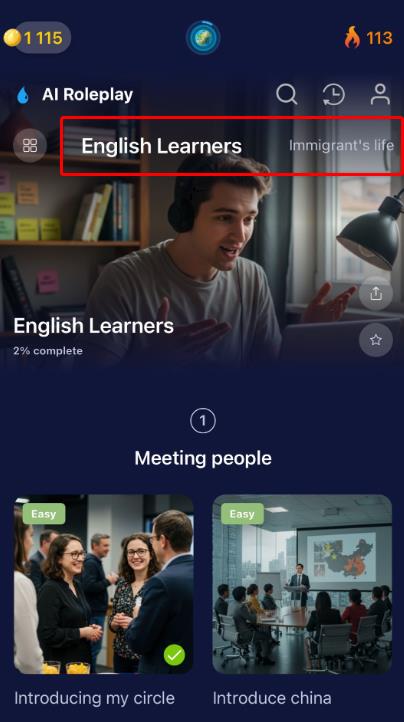
3. How do I start practicing in a Speaking World?
- Open AI Roleplay
- Select the Speaking World tab you want
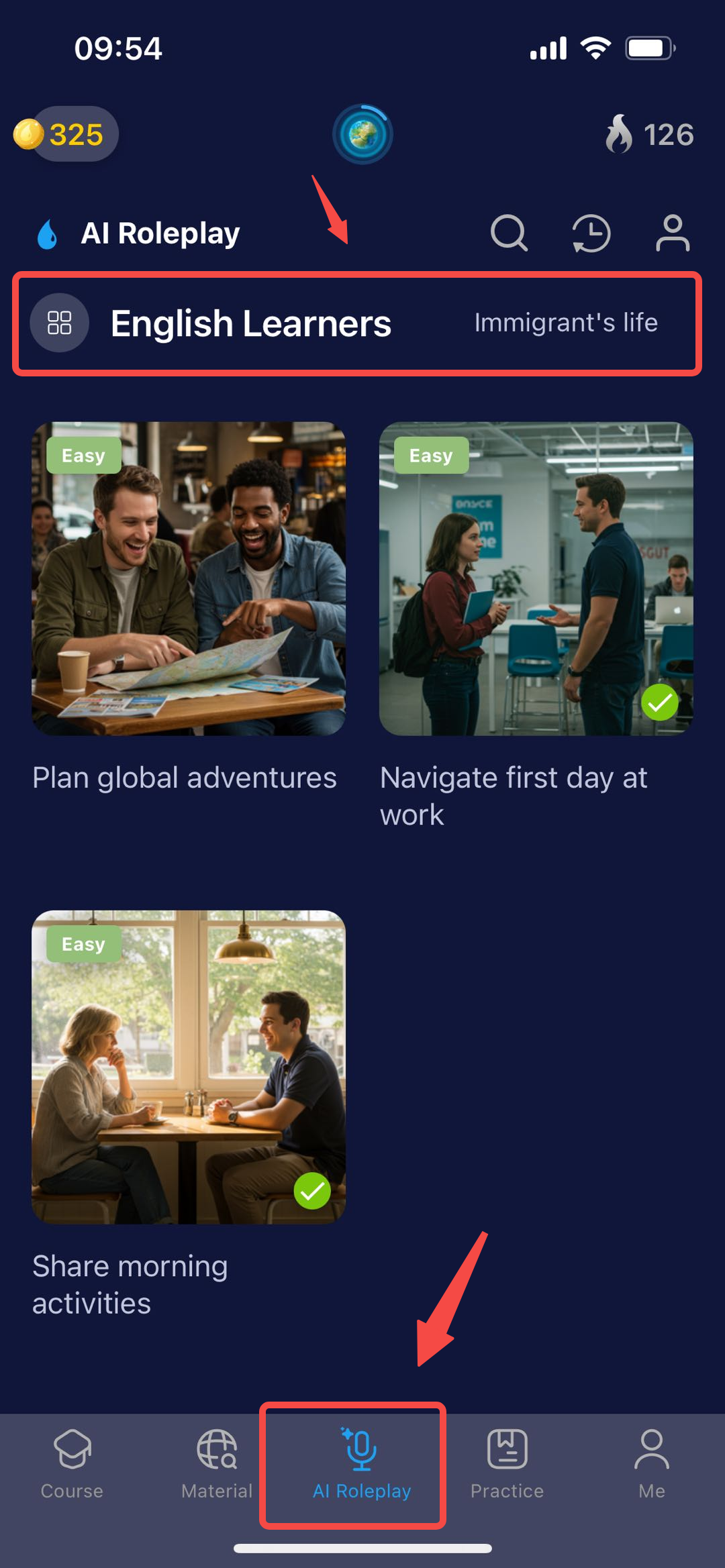
- Choose a scenario
- Start speaking with AI using voice input or typing
✔ Once you complete a scenario, it will be automatically marked as completed (✓).
4. Do I need to complete scenarios in order?
No. The order is not mandatory.
- You can practice any scenario within a Speaking World
- The progress percentage (%) helps you track how much of each world you’ve completed
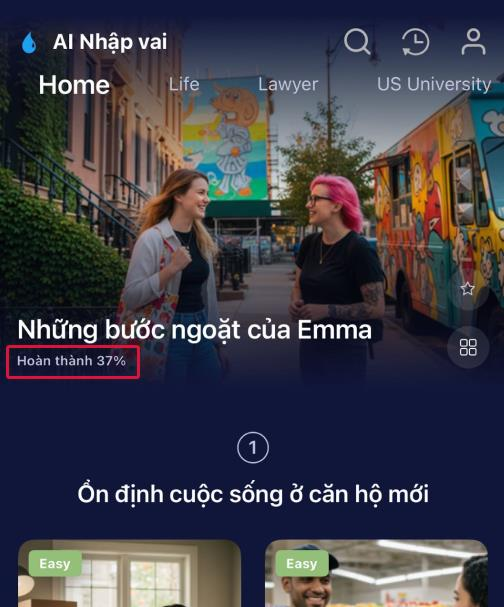
👉 This is ideal for busy learners who want fast, goal-focused practice.
5. How can I find a Speaking World or scenario I practiced before?
You can:
- Switch tabs to review available Speaking Worlds
- Use Search to quickly find a scenario by its name
🔍 When using Search, results will show individual scenarios, not worlds.
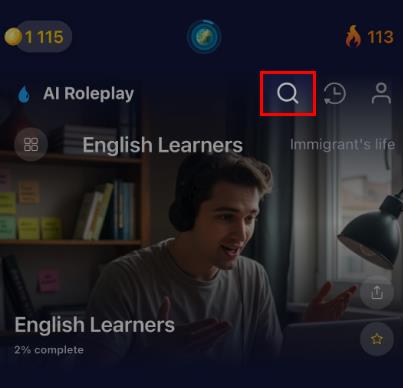
6. How can I always open my favorite Speaking World?
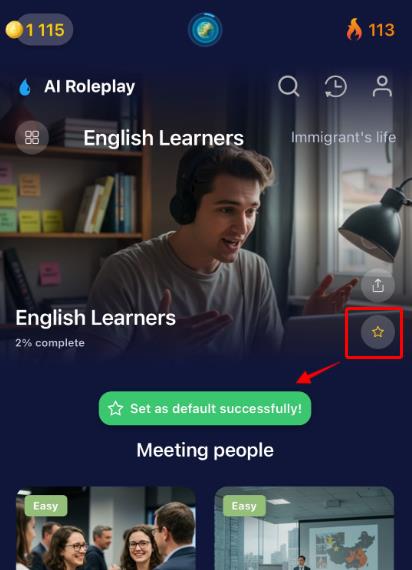
You can set a Speaking World as your default by tapping the ⭐ icon.
From then on, every time you open the app, this world will be displayed first in AI Roleplay.
7. What do I get after completing a Speaking World?
When you complete 100% of the scenarios in a Speaking World, you will receive:
- An AI Roleplay Certificate (PDF)
- The certificate can be downloaded or shared directly
🎯 This certificate recognizes your real speaking practice and progress.
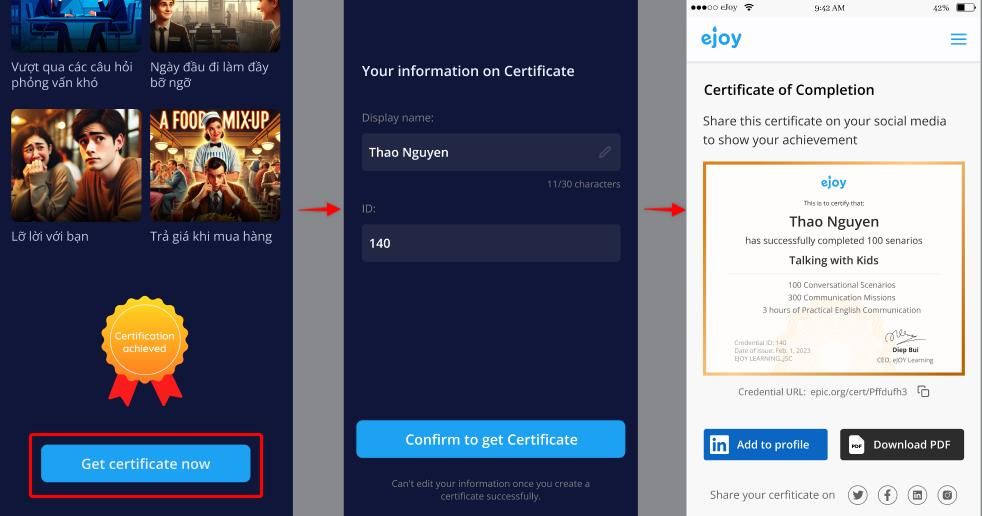
⚠️ Important notes: Your name can be edited only once when creating the certificate. The certificate can be created only once per Speaking World, even if you repeat the world later.
8. Tips for practicing AI Roleplay effectively
Before speaking, read the scenario description carefully to understand the context.
You can also combine speaking practice with helpful features such as:
- Translation
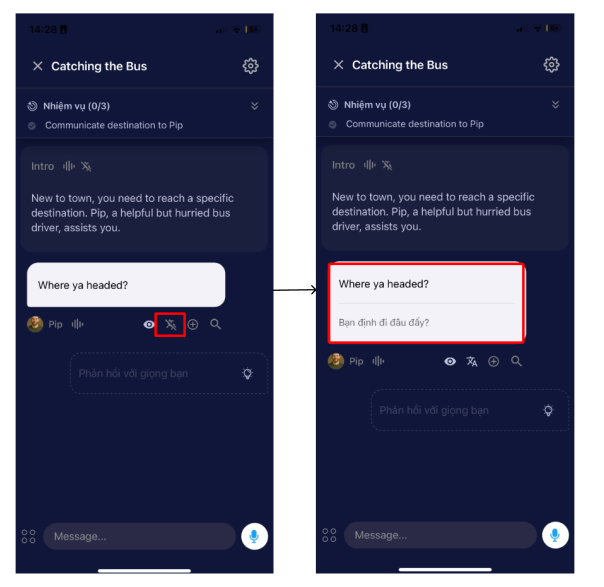
- Suggested answers
- Dictionary lookup

- AI Rewrite
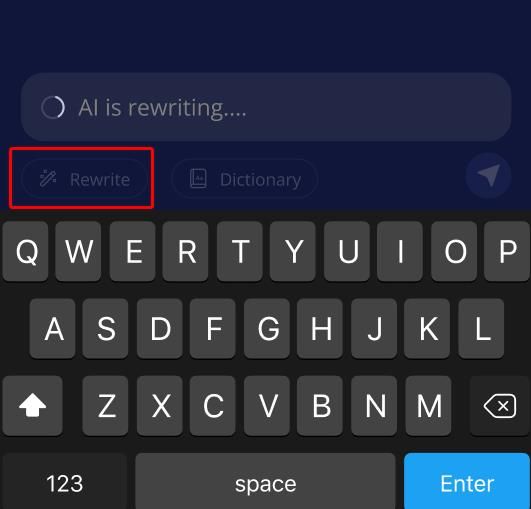
- Reviewing AI feedback to improve pronunciation and grammar
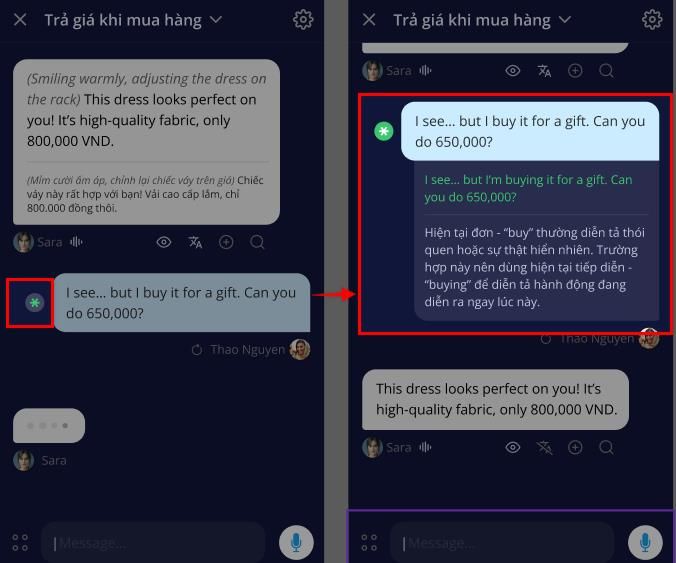
9. Customize your experience with Settings
Tap the ⚙️ Settings icon in the top right corner during a conversation to:
- Show/hide translations, corrections, hints, and more.
- Adjust the experience to focus on the skills you want to improve.
The settings are divided into four sections.
Section 1:
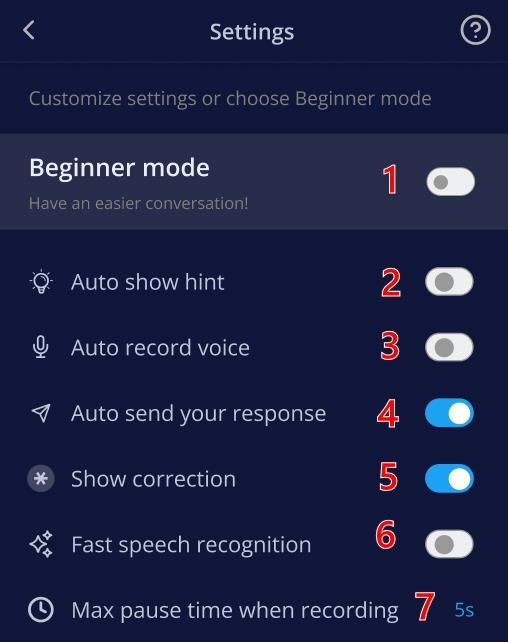
(1) Beginner mode: When this option is enabled, the settings below will automatically adjust to a simplified mode, making it easier for beginners to understand and interact.
(2) Auto show hint: Automatically shows suggested next lines during the conversation to guide your reply.
(3) Auto record voice: Automatically starts recording your voice when entering the role play screen, without needing to press the mic button.
(4) Auto send your response: Sends your recorded voice immediately after finishing without asking for confirmation.
(5) Show correction: Displays grammar or sentence corrections for your response to help you learn from mistakes.
(6) Fast speech recognition: Speeds up voice recognition (may slightly affect accuracy).
(7) Max pause time when recording: Choose a duration that's perfect for you, from a quick 3 seconds to a leisurely 10 seconds. – If you stop speaking for this long, the system will auto-stop and send your response.
Section 2: Translation
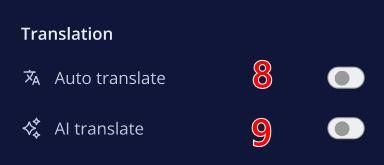
(8) Auto translate: Automatically translates the AI’s response into your language.
(9) AI translate: Enables AI to translate for better comprehension.
Section 3: AI character response
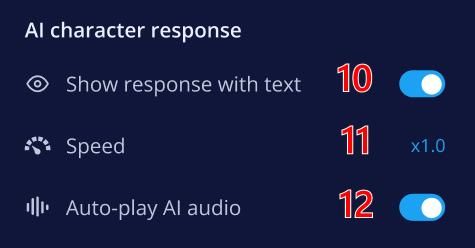
(10) Show response with text: Displays the AI’s spoken response as text on the screen.
(11) Speed: Controls the AI's speaking speed – you can adjust it to be faster or slower.
(12) Auto-play AI audio: Automatically plays the AI’s voice after generating a response.
Section 4: Narration
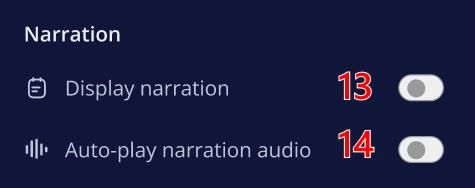
(13) Display narration: Shows narration text that introduces the scenario or conversation context.
(14) Auto-play narration audio: Automatically plays the narration audio at the start of a new scenario.
Need help? Message our friendly support team via Facebook - we’re here for you!