
You can select multiple vocabulary cards and move them to another wordbook in just a few simple steps.
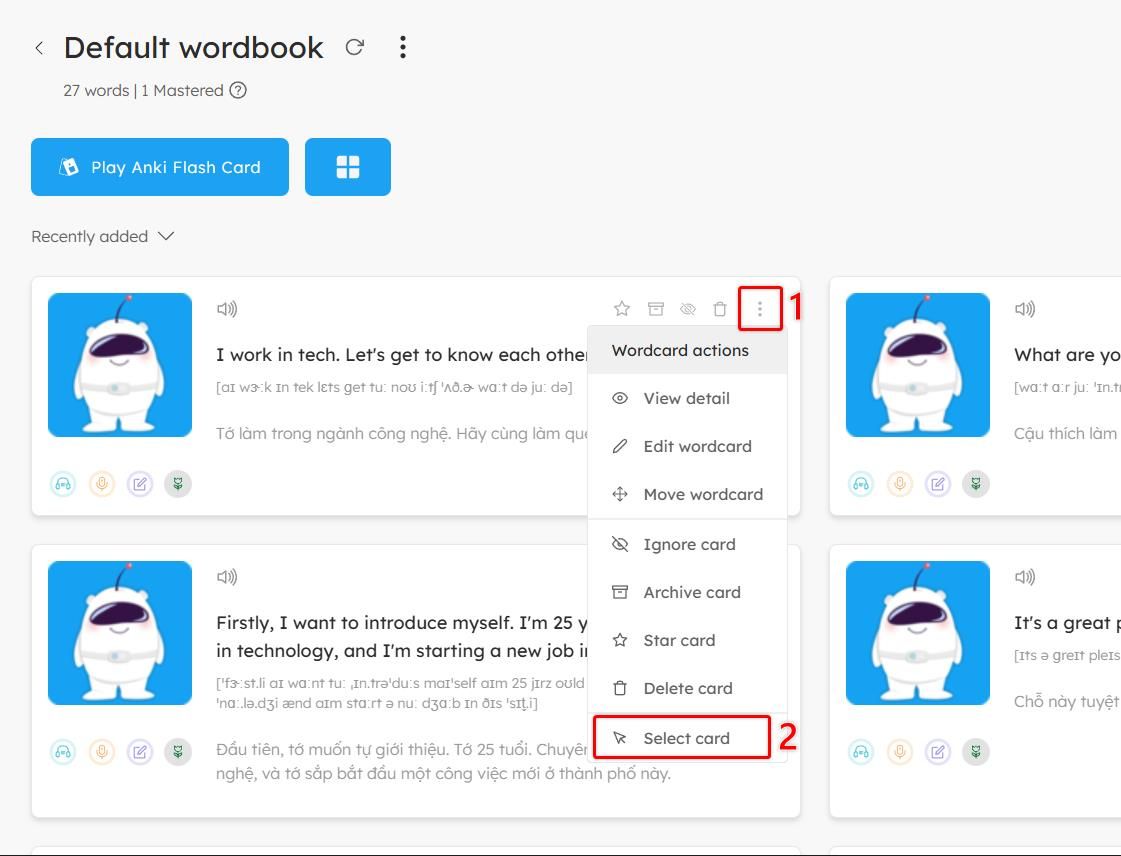
Step 1: Open the wordcard action menu
On the Wordbook screen → Click the ⋮ (three dots) icon at the top-right corner of the card.
Step 2: Select the card
In the dropdown menu, choose Select card.
Step 3: Select additional vocabulary cards
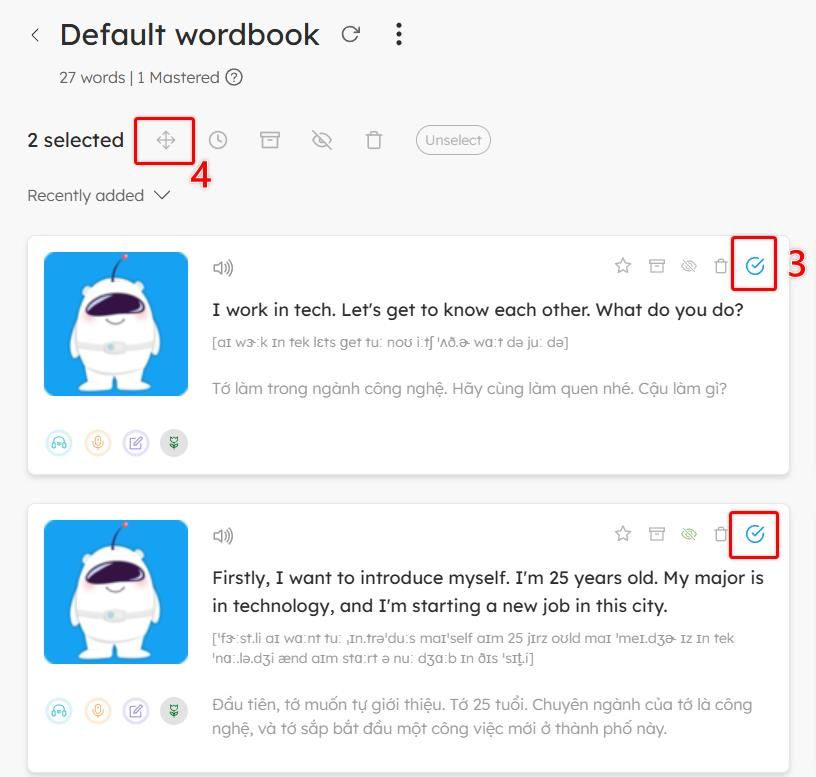
After the first card is selected, other cards will display a circle checkbox in the top corner.
Click the circle to select more cards.
Step 4: Open the Move menu
Once you have selected the cards, a toolbar will appear at the top of the screen.
Click the Move icon (four-direction arrow).
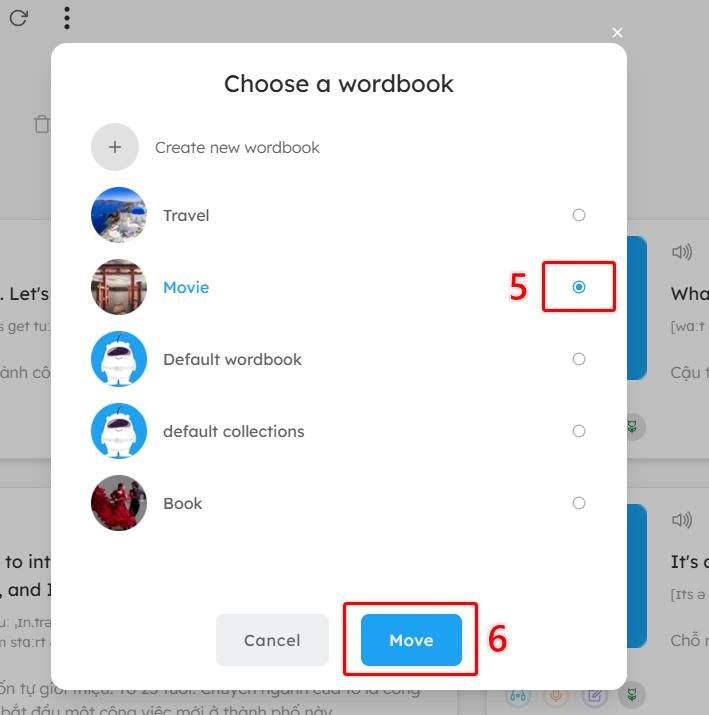
Step 5: Choose the destination wordbook
In the pop-up window, select the wordbook where you want to move the selected cards.
Step 6: Confirm the move
Click Move to complete the process.
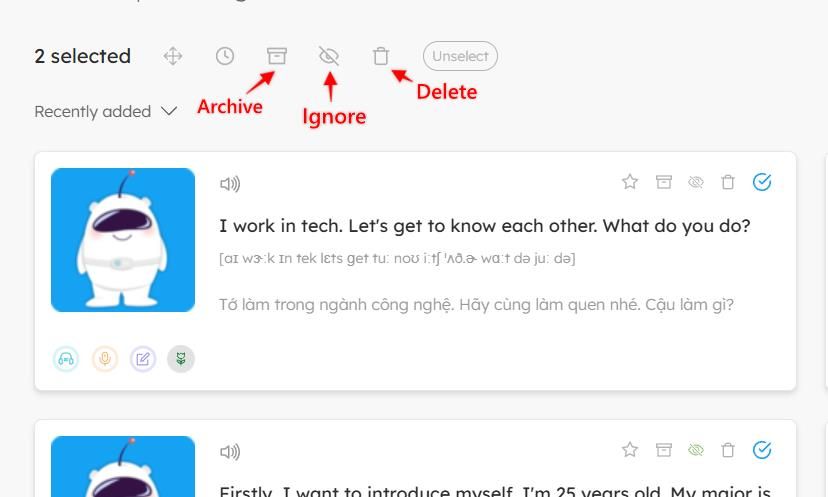
🎯 In addition to moving cards, you can also:
- Delete multiple cards at once → Click the Delete icon
- Archive cards (hide from wordbook but keep them stored) → Click the Archive icon
- Ignore cards (they will not appear in practice) → Click the Ignore icon
✨ Tip:
The Select feature is very helpful for organizing your vocabulary efficiently, especially when your wordbook contains many cards and you want to rearrange them into specific learning topics.